📺 SmartTube 🚫🎬
Ad-free YouTube client for Android TV & Firestick. Open-source. No ads. No tracking. Pure video.
🏛️ What is SmartTube?
SmartTube is an open-source media client for Android TV with advanced playback and browsing features. It's a completely ad-free version of YouTube — no pre-roll ads, no mid-roll interruptions, no banner overlays. It can be installed on any device running Android OS, including Amazon Firestick, Fire TV, and Android TV / Google TV devices. (Note: Currently NOT available on mobile phones/tablets — for those, try ReVanced.)
🌐 Official site: smarttubeapp.github.io
💻 Source code: github.com/yuliskov/SmartTube
✨ Features
- 🚫 100% AD-FREE YouTube experience
- 🎬 Up to 8K video resolution support
- 👤 Sign in with your Google account (recommended videos, playlists, favorites)
- 📱 Cast from your phone
- 🎮 Full TV remote control support (no mouse needed)
- ⌨️ External software keyboard support
- 🤖 Works on devices WITHOUT Google Services
- 🌐 Open-source (GitHub) — transparent & auditable
- 🔄 Stable + Beta channels available
📥 Method 1: Downloader App (Recommended)
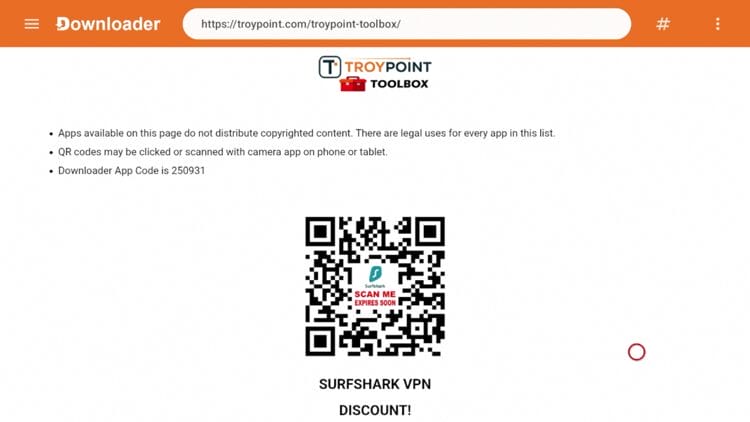
This is the easiest method — works on both Firestick and Android TV / Google TV. Uses the TROYPOINT Toolbox.
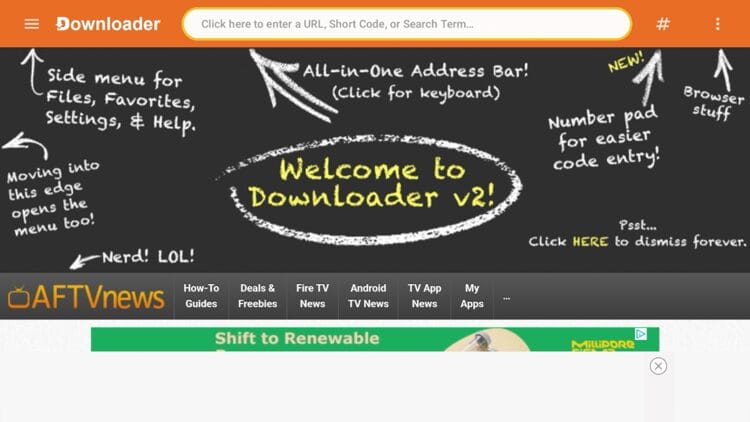
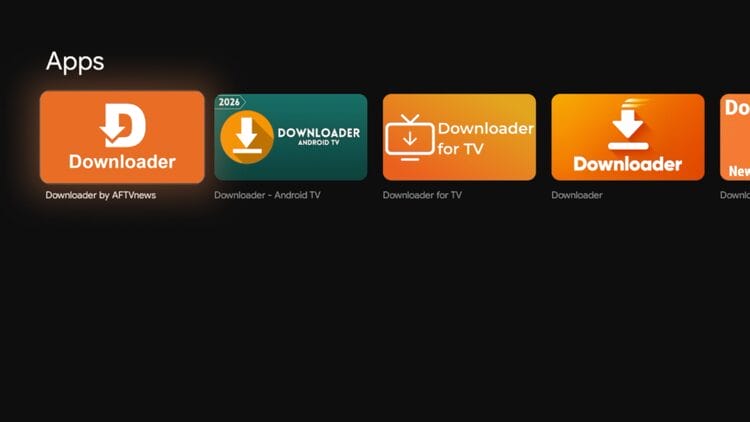
You must first install the Downloader app on your device. If you haven't done this, install the official Downloader app by AFTVNews from your device's app store. (This step is required for both Firestick and Android TV/Google TV devices.)
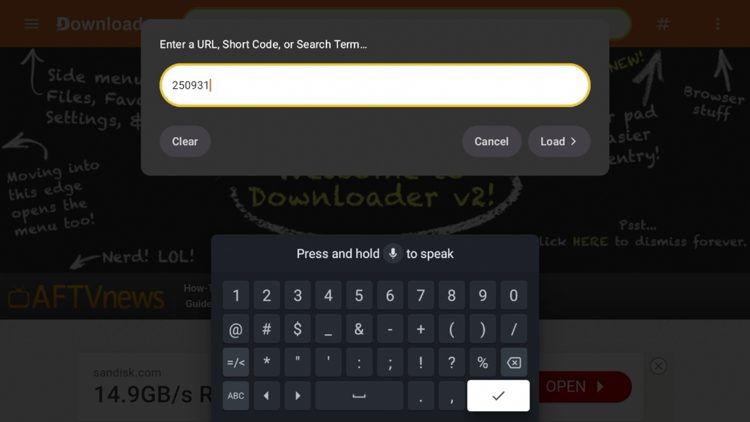
Launch the Downloader app and place your cursor in the URL box. Click the OK button on your remote to open the on-screen keyboard.
Type the Downloader Code for the TROYPOINT Toolbox: 250931 and click Go.
You are now presented with the TROYPOINT Toolbox home screen.
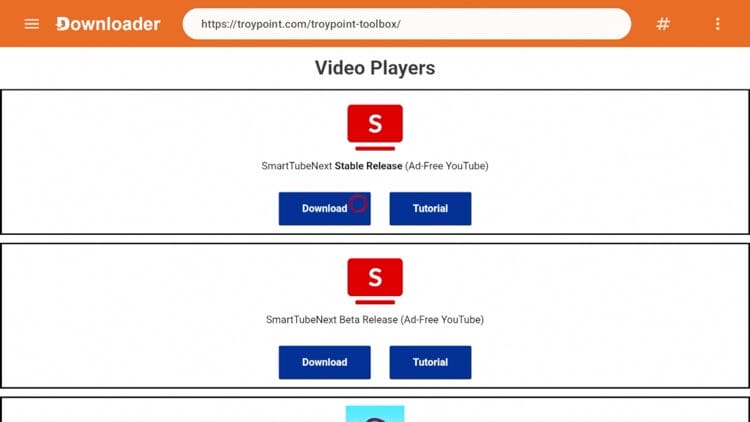
Scroll down to find SmartTube (stable & beta) and click download for your preferred app. We recommend using the Stable version as the beta release likely has bugs/errors.
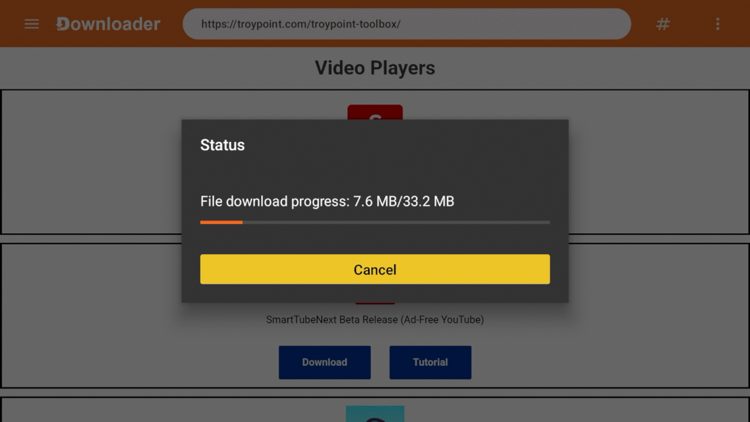
Wait for the app to finish downloading.
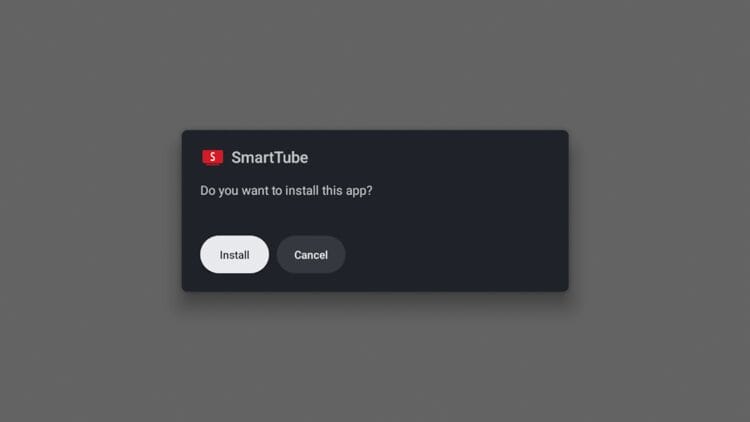
Select Install when prompted.
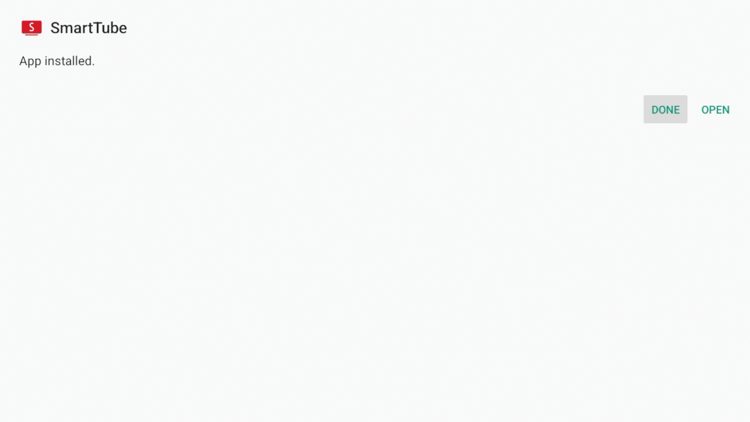
You will then encounter the "SmartTube Ready to launch!" message. Select Done.
Click Delete to remove the installation file.
Choose Delete again to confirm removal of the installation file (saves space).
Launch the newly installed SmartTube app from your device home screen.
You have installed SmartTube and can now start streaming YouTube videos without ads.
TROYPOINT Toolbox code: 250931
Alternatively, SmartTube's official Downloader codes are: 28544 (Stable) and 79015 (Beta) — enter these directly in the Downloader URL box instead of the TROYPOINT Toolbox.
👤 Sign Into Your YouTube Account (Optional)
No account is required, but signing in gives you recommendations, playlists, and favorites.
In the left-hand corner of SmartTube, select the Account icon.
Choose Sign-In from the menu.
You are given an authorization code on screen. Make note of this code.
Go to youtube.com/activate on a phone or computer and enter the authorization code from the step above.
You will see a "device connected" message. Authorization is complete! Return to SmartTube to see the sign-in complete message.
💾 Method 2: USB Sideload (No Network Needed)
If you don't want to use Downloader or your device has no internet access for the toolbox, you can copy the APK to a USB drive and install it manually.
On a computer, download the SmartTube Stable APK directly from the official source: https://smarttubeapp.github.io/ (click "Download apk" → "Stable release"). You can also use the direct URL: https://download.smarttubeapp.com/ or the GitHub releases page.
Insert a USB drive into your computer. Format it as FAT32 (use Rufus or your OS disk utility). This ensures the TV/box can read it. Note: FAT32 has a 4GB file limit — SmartTube is well under that, so this is fine.
Copy the downloaded SmartTube APK file onto the root of the USB drive. Safely eject the drive.
On BOTH the NVIDIA Shield and FireStick, you must first enable "Install Unknown Sources" (or "Apps from Unknown Sources"). Follow the Setup guides in the Hardware section of this site: Shield Setup | FireStick 4K Setup.
Plug the USB drive into a free USB port on the NVIDIA Shield (it has 2× USB 3.0 ports) or into an OTG adapter connected to the FireStick 4K (the dongle itself has no USB port, so use a USB-C OTG cable + powered hub if needed).
On the device, open a file manager app. If you don't have one, install "FX File Explorer" or "File Commander" from the app store first. Navigate to the USB drive.
Find the SmartTube APK on the USB drive and select it. Choose Install. On the Shield, you may need to grant "Install unknown apps" permission to the file manager app when prompted.
After installation completes, launch SmartTube from your device home screen / app drawer. Done!
🟢 NVIDIA Shield TV Pro — USB Notes
✅ The NVIDIA Shield TV Pro has 2× USB 3.0 ports — no adapter needed. Just plug the USB drive in directly.
⚠️ On Shield, "Unknown Sources" is per-app. After enabling the global toggle, go to Settings → Apps → [your file manager] → and toggle "Install unknown apps" ON for that app.
💡 Shield's built-in "Storage Access Framework" makes USB mounting seamless — the drive appears in any file manager automatically.
🔥 Amazon FireStick 4K — USB Notes
🔌 The FireStick 4K has NO USB port. You need a USB-C OTG (On-The-Go) adapter or cable to connect a USB drive.
⚠️ Use a POWERED USB hub or OTG cable with external power — the FireStick's port may not supply enough power for the drive.
💡 Alternatively, use an OTG cable + a microSD card reader if you prefer SD storage over USB.
⚠️ Security & Legal Notes
✅ Safe to use: SmartTube is open-source and widely trusted in the Android TV community.
✅ Legal: It's a YouTube client that respects Google's API — it does not bypass paid content.
🔒 Privacy: Use a VPN when streaming to keep your ISP from seeing your traffic.
⚠️ Source verification: Always download from smarttubeapp.github.io or the official GitHub releases — avoid random mirror sites.
🖼️ Reference Screenshots
Copied locally from the referenced source article: TROYPOINT SmartTube screenshots. These are stored in the repo so the guide does not depend on remote images disappearing.
🔗 Sources
→ How to Install SmartTube on Firestick & Android TV (Ad-Free YouTube) — TROYPOINT (troypoint.com)
→ SmartTube Official Website (smarttubeapp.github.io)
→ SmartTube Source Code — GitHub (github.com/yuliskov/SmartTube)