🎬 POV Kodi Add-on 📺
Top-tier Kodi add-on for movies & TV shows. Located in the Kodifitzwell Repository. Requires a Debrid service.
📖 About POV
🎬 POV is a top-level Kodi add-on located within the Kodifitzwell Repository.
📺 It is said to be a clone of the popular FEN add-on. With FEN no longer being supported, many have turned to alternative options and POV is one of the best available.
🍿 This Kodi add-on features movies, TV shows, and other on-demand content. Many enjoy POV because it receives frequent updates and has a simplified user interface that makes searching for and selecting films and shows a breeze.
☁️ A Debrid/cloud service (Real-Debrid, TorBox, AllDebrid) is REQUIRED for access to content — without it, POV shows no streams.
🚀 Works on any compatible Kodi device: Firestick/Fire TV, Android TV, Android mobile, PC, Mac, and more.
📥 How to Install POV Kodi Addon
Follow these steps on any Kodi device — Firestick/Fire TV, Android TV, PC, Mac, etc.
Launch Kodi and from the home screen, choose Settings (the gear icon).
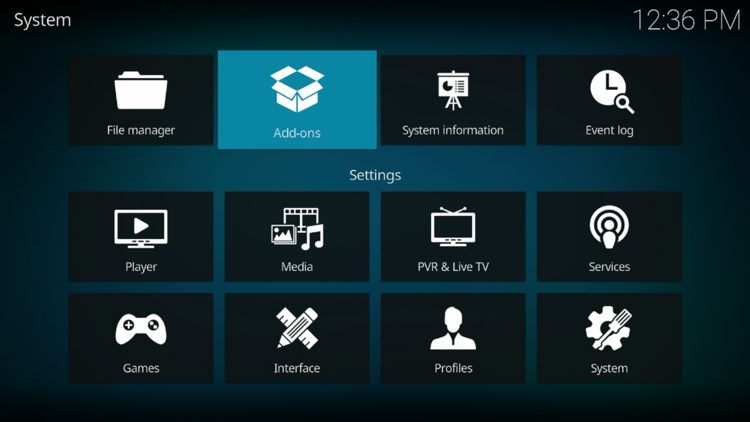
Click on System (or "System" settings).
We will now turn Unknown Sources ON. Go to Add-ons → Unknown Sources and toggle it to ON. Confirm the warning when prompted. (This is required to install third-party repositories.)
Go back to the Settings screen and open File Manager.
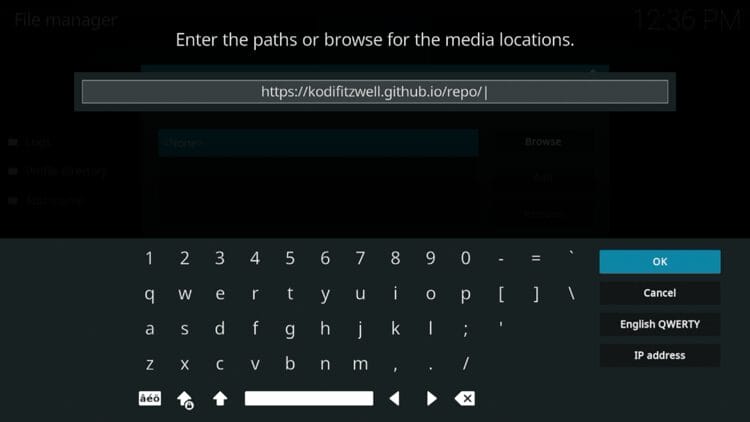
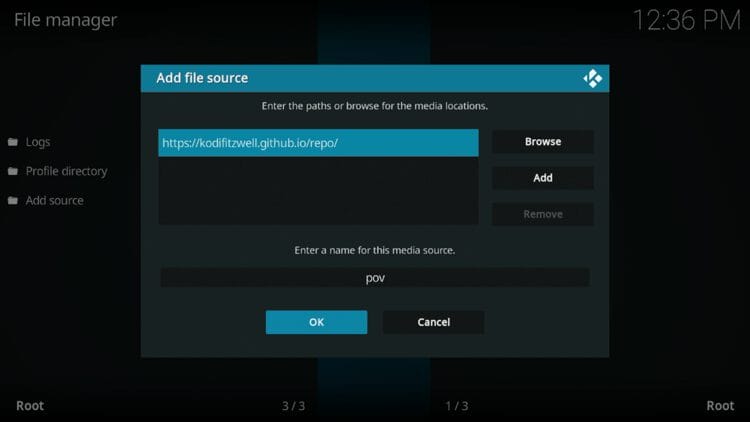
Click "Add source" on the left side. Select "None" and enter the following URL exactly:
Type: https://kodifitzwell.github.io/repo/ and click OK. Be careful to enter it exactly as shown — double-check for typos.
Input a media source name you prefer (e.g., "pov") and click OK. This name will be referenced in later steps.
Go back to the System page and launch Add-ons (or from the Kodi home screen, go to Add-ons).
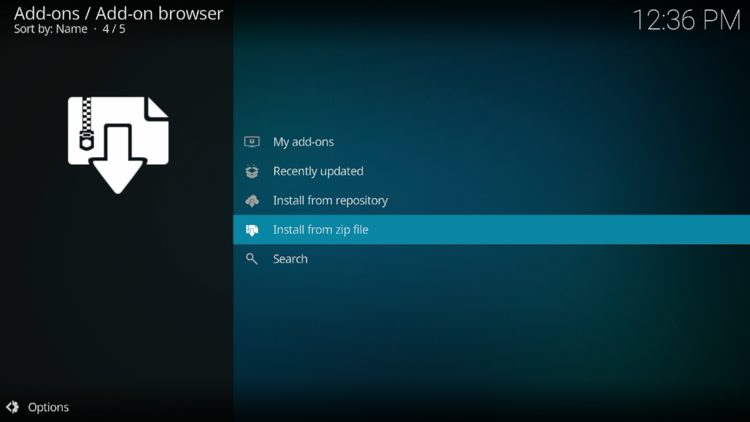
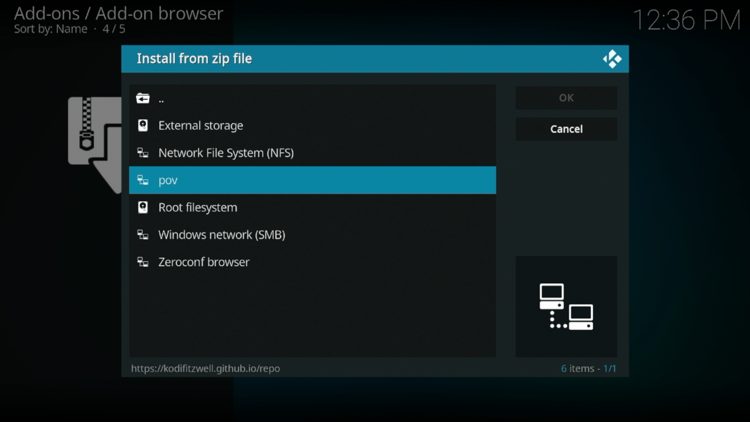
Select "Install from zip file." If prompted with a warning, click "Yes" or "Settings" → enable "Unknown Sources" (you did this in Step 3).
Choose "pov" (or whatever name you entered for the media source in Step 7).
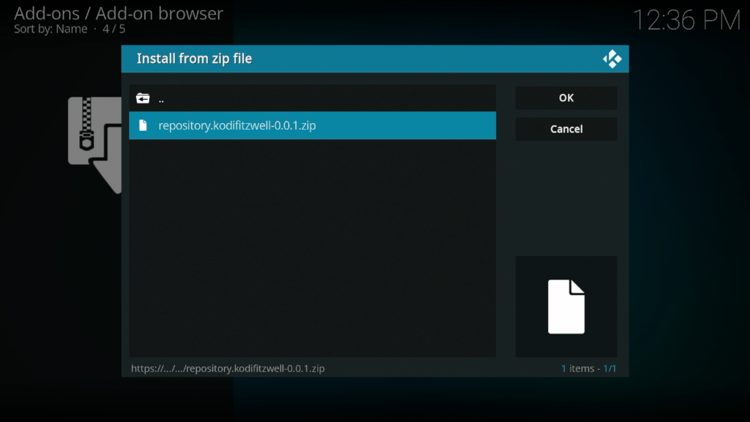
Select the file: repository.kodifitzwell.zip.
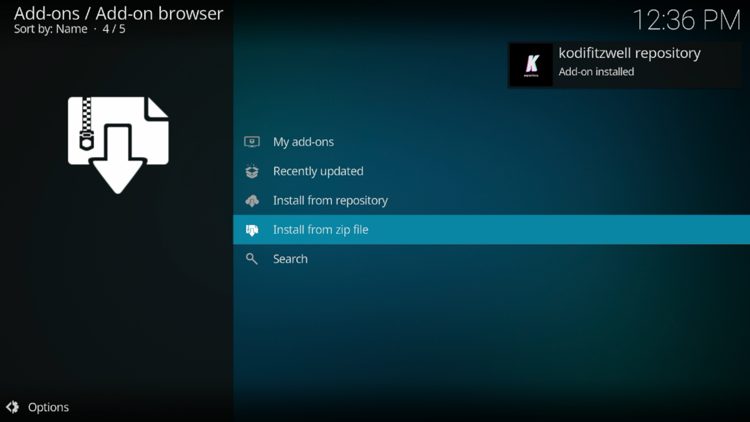
You will see a "kodifitzwell Repository add-on installed" message at the top-right of the screen.
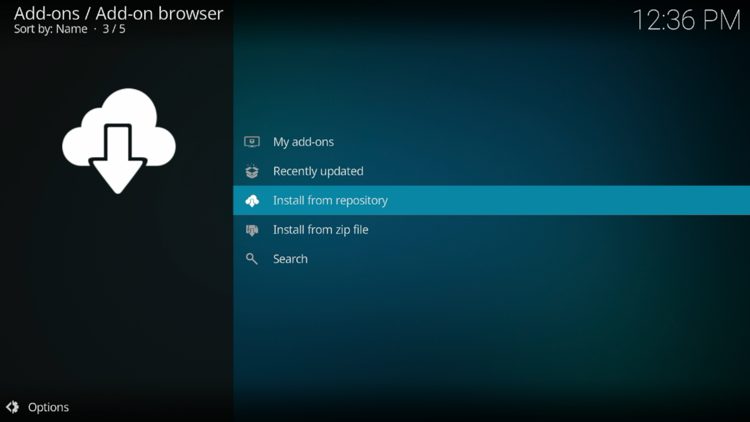
Click "Install from repository" (or "Install from zip file" → then back out → "Install from repository").
Select the kodifitzwell Repo (or "kodifitzwell Repository").
Launch "Video add-ons" from within the repository list.
Scroll down and select POV from the list of video add-ons.
Click "Install." Wait for the installation to finish.
When finished, the "Add-on installed" message will appear at the top-right.
Go back to the Home screen of Kodi and select Add-ons, then choose POV.
You have successfully installed the POV add-on. Installation is complete — but you are not done yet. As noted above, users must integrate an unrestricted downloading service (Debrid) within POV before content will play.
☁️ How to Integrate Debrid Services
As noted above, the only way to watch entertainment within POV is by authorizing a Debrid provider. Real-Debrid is currently the top service available — we will add this to POV using the steps below. (TorBox, AllDebrid, Premiumize, and others are also supported.)
Launch the POV Kodi Add-on and scroll down to open Settings (the gear/cog icon).
Click "Settings: My Services" (or "Accounts" / "My Services" depending on version).
Choose your preferred Debrid service — e.g., Real-Debrid, TorBox, AllDebrid, Premiumize, or other supported provider.
Click the provider name and you will be presented with an authorization code and a URL (e.g., real-debrid.com/device).
On a phone or computer, open the provided URL and enter the authorization code shown in Kodi.
Return to POV and you will encounter an "authorization success" message for your Debrid service. You are now ready to stream!
📂 POV Addon Categories & Details
As you may notice after installing, the POV add-on works very well on almost any Kodi device. There are several categories available:
⚖️ POV Review by Troy
POV is one of the best available add-on options for Kodi users. Here's what we like and don't like:
✅ What We Like
- 🔄 Continual Updates — POV is actively maintained.
- 🕸️ No external scraper needed — built-in scraping.
- 💎 Premium Debrid integration — fast, reliable streams.
- ⚡ Ultra-Fast Playback — optimized for speed.
❌ What We Don't Like
- 🚫 Not compatible with every Debrid Service — check your provider is supported.
- ☁️ Requires a paid Debrid account for any content.
⚠️ Is POV Safe & Legal?
⚠️ POV is an unverified 3rd-party add-on. TROYPOINT cannot determine whether it holds proper licensing.
🔍 Before installing, scan the Kodifitzwell repository URL (https://kodifitzwell.github.io/repo/) with VirusTotal.
✅ VirusTotal did NOT find suspicious files in the Kodifitzwell repository URL.
🛡️ Always use a VPN when streaming from unverified 3rd-party add-ons to protect your privacy and ISP monitoring.
📋 Only install from the official Kodifitzwell Repository — avoid repackaged or "fully loaded" versions.
🖼️ Reference Screenshots
Copied locally from the referenced source article: TROYPOINT POV install screenshots. These are stored in the repo so the guide does not depend on remote images disappearing.
🔗 Source
→ How to Install POV Kodi Addon (Step by Step Guide) — TROYPOINT (troypoint.com)