🔧 Setup: Enable Unknown Sources 📦
Step-by-step guide to enabling "Install Unknown Sources" on NVIDIA Shield TV Pro for sideloading third-party apps.
⚠️ Security Warning
Enabling Unknown Sources allows installation of apps from outside the Google Play Store. Only install APKs from sources you trust. Unknown apps can contain malware. Re-disable this setting after installing if you don't need it ongoing.
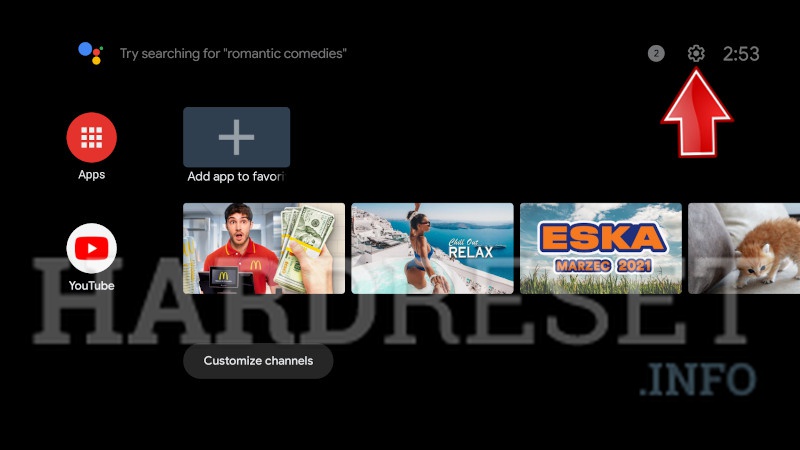
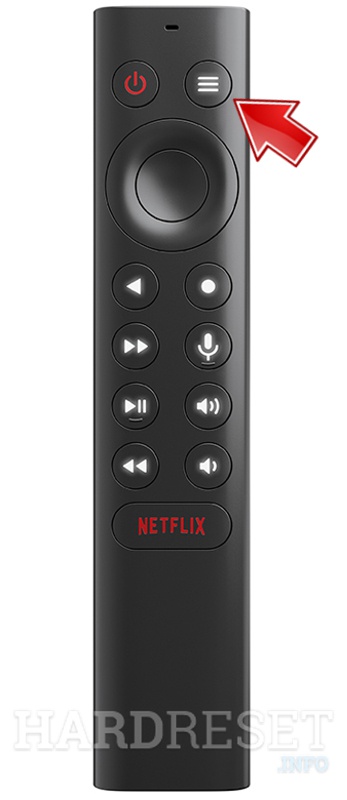
From the NVIDIA Shield home screen, press the Home button on your remote and navigate to the Settings gear icon at the top of the screen.
In the Settings menu, scroll down and select "Device Preferences" — this is where system-level options live.
Inside Device Preferences, select "About" at the top of the list. This shows your device info, firmware version, and build number.
Scroll down to the "Build" entry. This looks like a info line, but it is actually a hidden button. Click on it repeatedly (7 times in a row). After a few clicks, a small message will appear at the bottom of the screen counting down: "You are now 4 steps away from being a developer." Keep clicking until you see "You are now a developer!"
Press the Back button on your remote to return to the Device Preferences menu. Scroll down — a new "Developer Options" entry will now appear below "About."
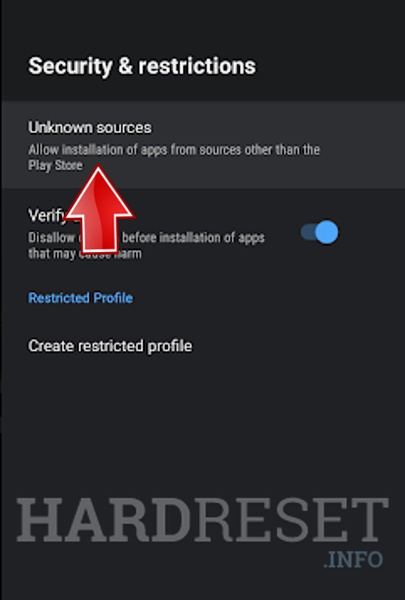
Still in the Device Preferences menu, scroll down to "Security & restrictions" and select it.
Inside Security & restrictions, you will see an "Unknown sources" toggle. Turn it ON. A warning will appear confirming that allowing installation from unknown sources may harm your device. Confirm by selecting "Allow" or "Yes."
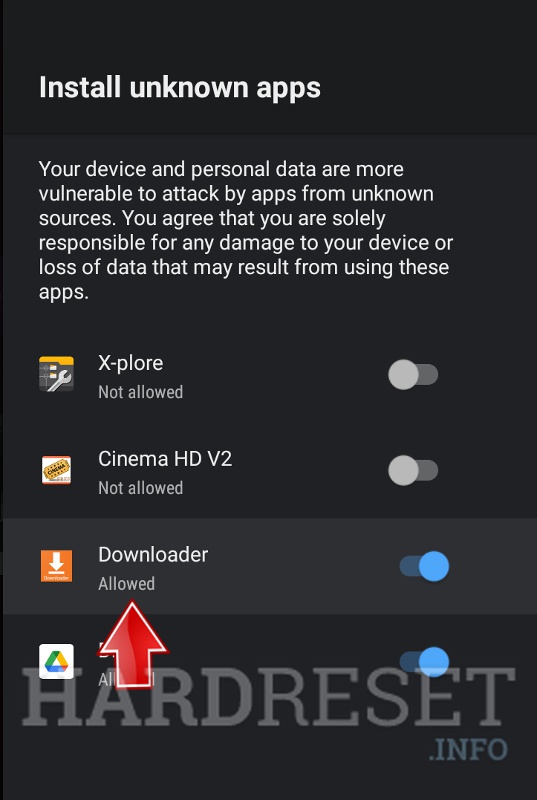
On newer Android TV versions (Shield runs Android 9+), "Unknown sources" is a per-app setting. After enabling the global toggle, when you attempt to install an APK from a specific app (e.g., Chrome, Downloader, or a file manager), Android TV will prompt you individually: "For security, your phone is set to block installation of apps from unknown sources." You then go to Settings → Apps → [the app you used to download] → and toggle "Install unknown apps" to ON for that specific app.
Now you can use a file manager, browser, or the Downloader app to download and install APK files from third-party sources. Always verify you trust the source before installing.
✅ Done!
You can now sideload APKs on your NVIDIA Shield TV Pro. Popular apps for downloading APKs include:
📦 Downloader — Enter a URL and download/install directly.
🌐 Chrome — Browse and download APKs from the browser.
📁 File Commander / FX File Explorer — File managers for local APK install.
🖼️ Reference Screenshots
Copied locally from the referenced source article: NVIDIA Shield Unknown Sources screenshots. These are stored in the repo so the guide does not depend on remote images disappearing.
🔗 Source
Instructions sourced from:
→ NVIDIA Shield TV Pro — Official Page (nvidia.com)
→ NVIDIA Shield Hacks & Tweaks (Developer Mode & More) — AndroidTVNews.com
→ How to Allow Unknown Sources on NVIDIA SHIELD TV PRO — HardReset.info