🔧 Setup: Enable Unknown Sources 📦
Step-by-step guide to enabling "Install Unknown Sources" on Amazon FireStick 4K Max for sideloading third-party apps.
⚠️ Security Warning
Enabling Unknown Sources allows installation of apps from outside the Amazon Appstore. Only install APKs from sources you trust. Unknown apps can contain malware. Re-disable this setting after installing if you don't need it ongoing.
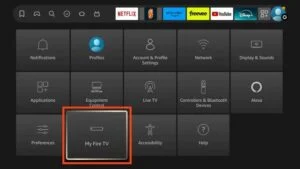
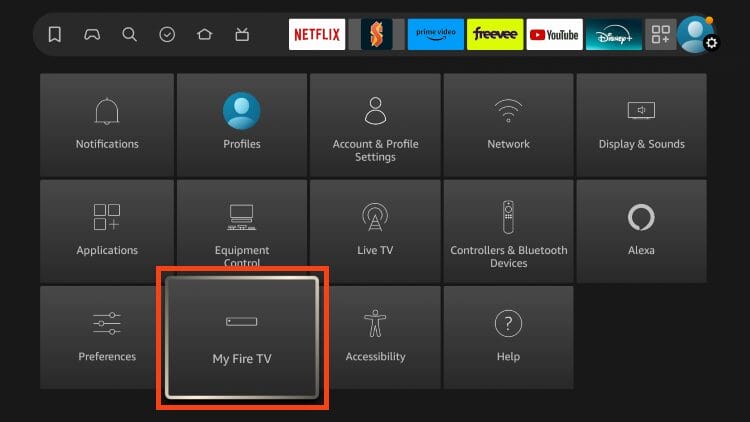
Ensure your Firestick is connected to Wi-Fi and powered on. From the Home Screen, go to Settings (the gear icon on the right-hand side of the screen).
In the Settings menu, scroll right and select "My Fire TV" (on some devices this may be labeled "Device" or "System"). This is where system-based settings are located.
Inside My Fire TV, select "About" to view your device information. You will see your device name (e.g., "Fire TV Stick 4K Max") at the top of the screen.
Navigate to your device name at the top. Highlight it — do NOT click it normally. Instead, press the Select button (the center button on your remote) seven times in a row. After a few seconds, you will see a message at the bottom of the screen: "You are now a developer!" or "No need, you are already a developer." This unlocks the hidden Developer Options menu.
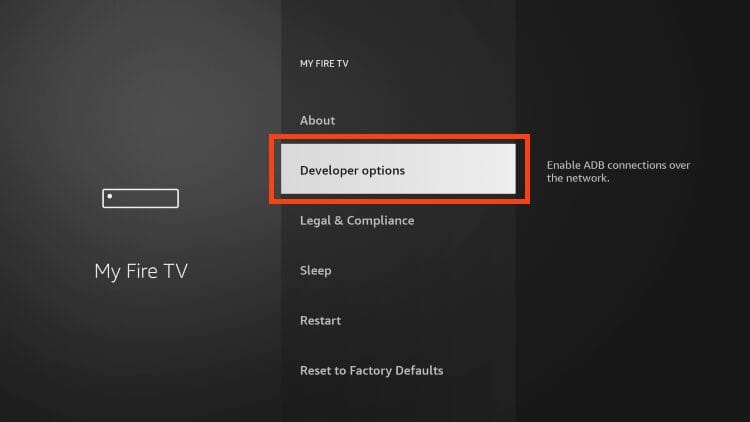
Press the Back button on your remote to return to the previous menu. Go back into "My Fire TV." You will now see a new "Developer Options" entry below "About." Select it.
Inside Developer Options, find the setting "Apps from Unknown Sources." Toggle it to ON. A warning prompt will appear: "You can now install apps from outside the Appstore. This may put your device at risk." Confirm by selecting "Turn On."
In the same Developer Options menu, you may also want to toggle "ADB Debugging" to ON. This allows you to connect to your Firestick via adb over the network for advanced sideloading and debugging.
Go back to the Home screen and select the Search icon (magnifying glass). Type "Downloader" and select the Downloader app (by AFTVnews) from the results. Click "Download" or "Get" to install it. This app lets you enter a URL and download APK files directly to your Firestick.
Open the Downloader app. Enter the URL of the APK file you wish to install in the address bar. Ensure the source is reputable. Download the APK file and wait for the process to complete. Once downloaded, select "Install" when prompted and follow the on-screen instructions to complete installation.
✅ Done!
You can now sideload APKs on your Amazon FireStick 4K Max. Popular apps for downloading APKs include:
📦 Downloader — Enter a URL and download/install directly (most popular).
🌐 Silk Browser — Browse and download APKs from the browser.
📁 File Commander / Total Commander — File managers for local APK install via USB OTG.
🧰 Troubleshooting
"Developer Options is missing!" — Go to Settings → My Fire TV → About → highlight your device name → press Select button 7 times to unlock it.
"Apps from Unknown Sources toggle is greyed out" — Restart your Firestick by unplugging it for 30 seconds, then try again.
"APK won't install" — Go to Settings → Applications → Manage Installed Applications → Clear cache and data for the Downloader app, then retry.
🖼️ Reference Screenshots
Copied locally from the referenced source article: FireStick Unknown Sources screenshots. These are stored in the repo so the guide does not depend on remote images disappearing.

🔗 Source
Instructions sourced from:
→ How to Turn on Developer Options on Firestick — Help Desk Geek (helpdeskgeek.com)
→ How to Allow Unknown Apps on Firestick — TechBloat (techbloat.com)
→ How to Enable Developer Options on FireStick (2026) — TopTVTricks (toptvtricks.com)